Edit Automations
-
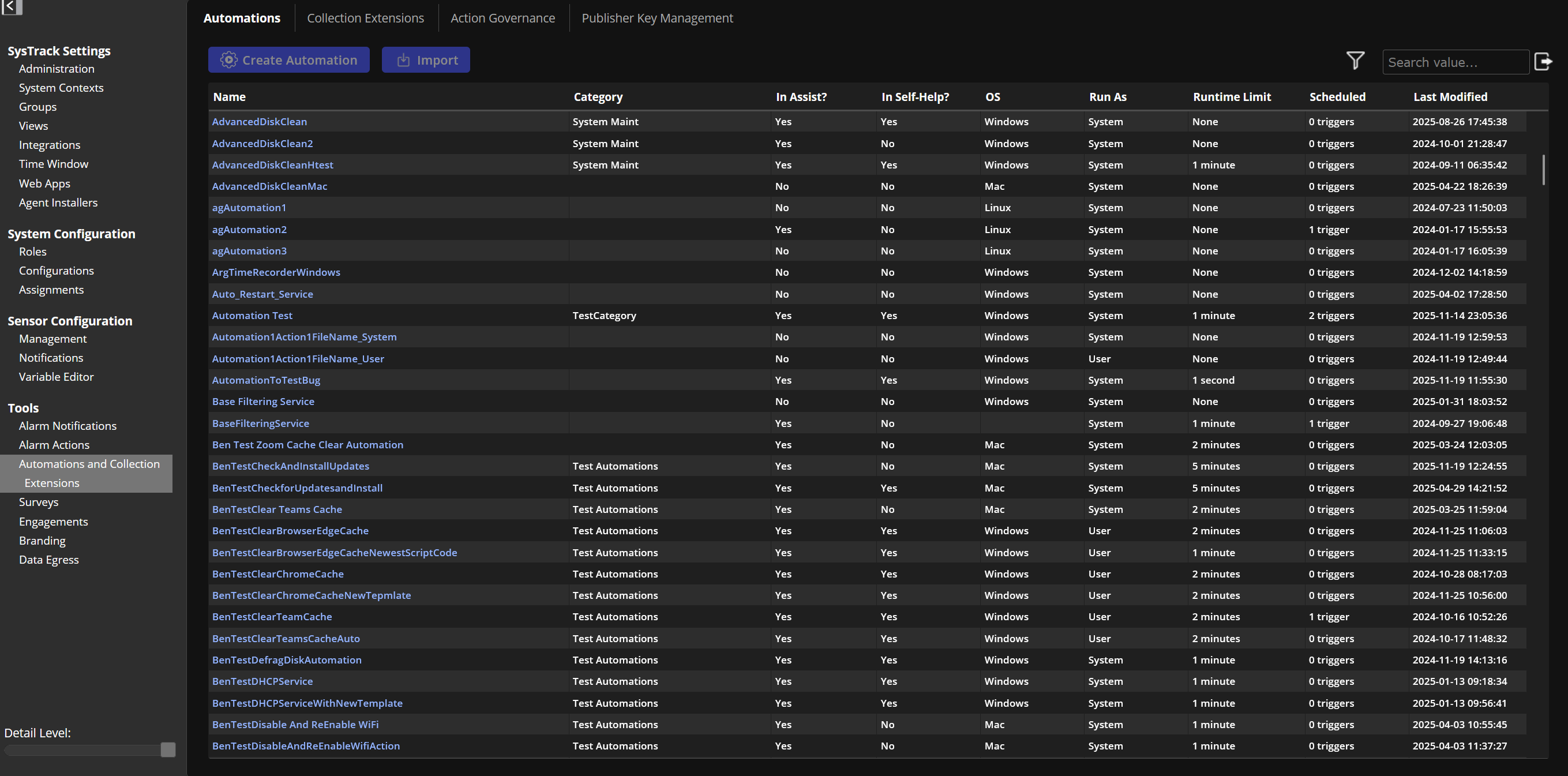
Go to Configure > Tools > Automations and Collection Extensions > Automations and click the name of the automation to edit.
-
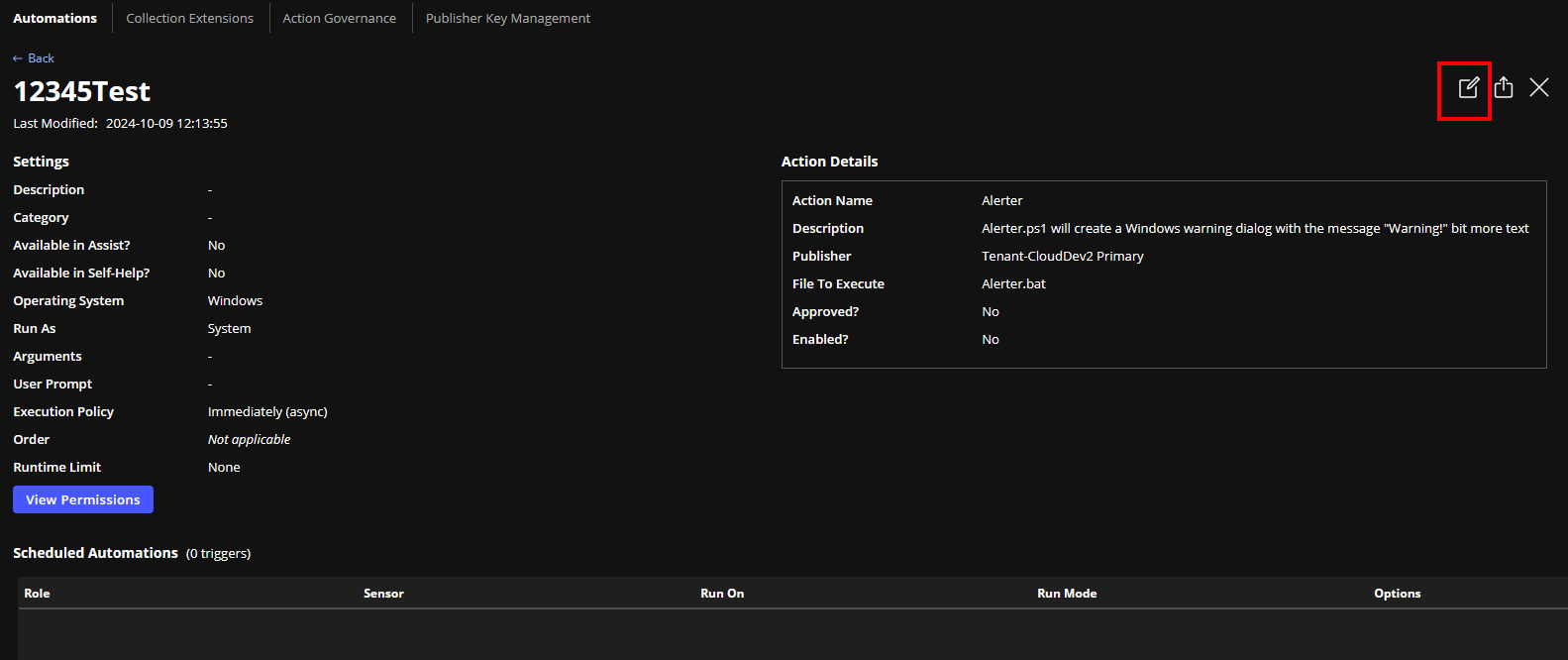
Click Edit.
-
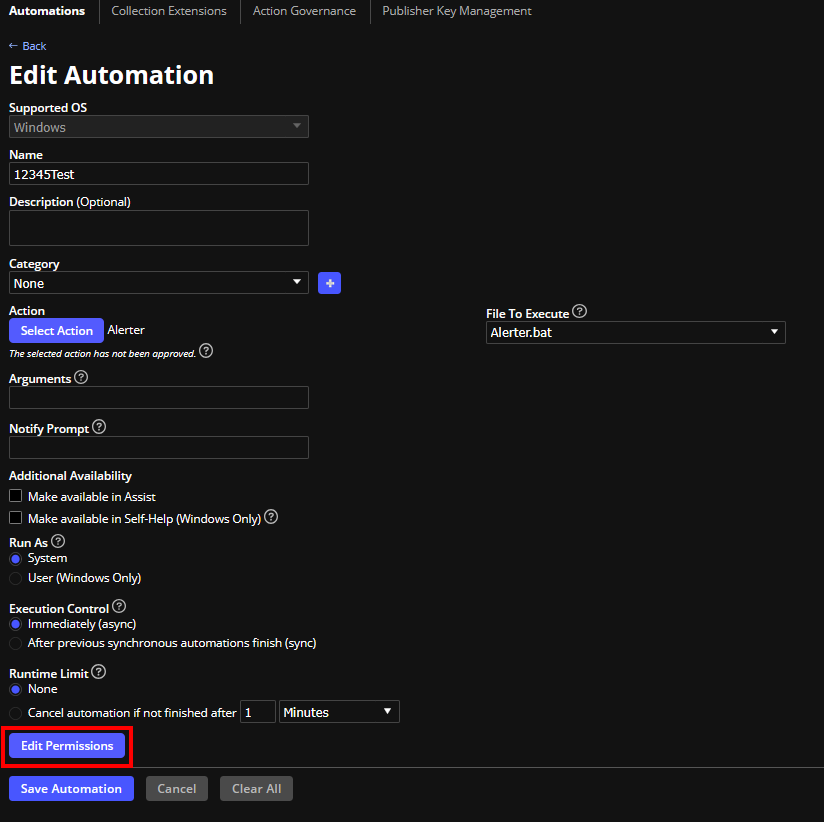
The Edit Automation window opens. In this view, you can edit the metadata of the selected automation.
-
(Optional) Choose a Category from the drop-down list or create a new one using the button next to the list. The Category drop-down is pre-populated with existing sensor categories. If your desired category is not listed, it means no other automation currently uses this category. You will need to create it again by clicking the + button to the right of the Category drop-down.
-
Click Edit Permissions.
-
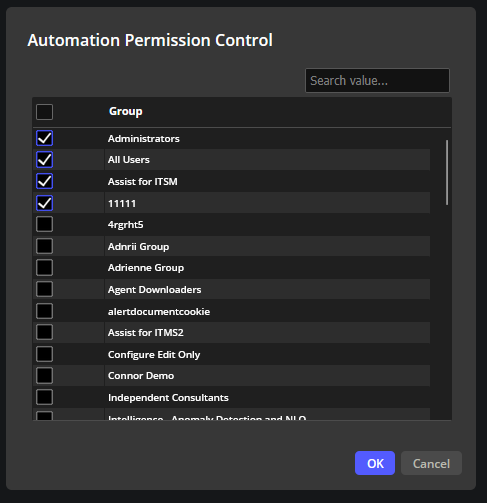
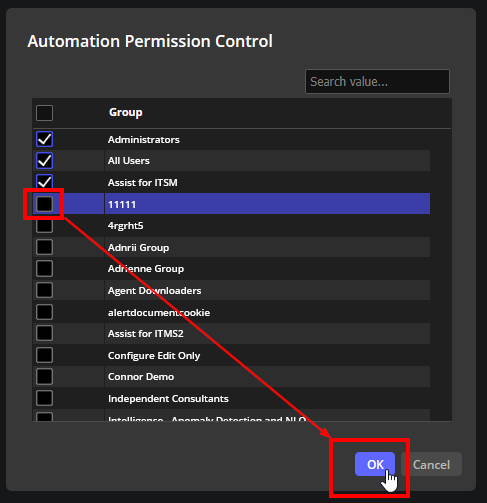
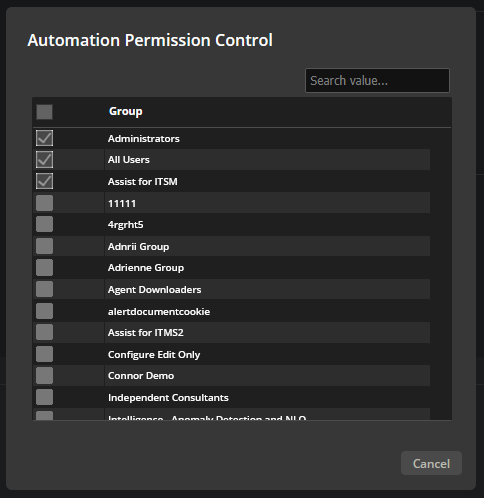
In the Automation Permission Control window check or uncheck the permissions you want to change.
-
After you have made your updates, click OK.
-
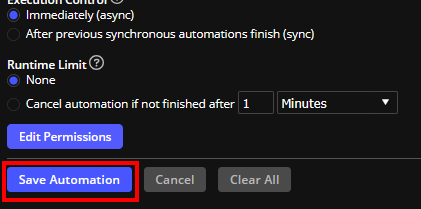
Click Save Automation
-
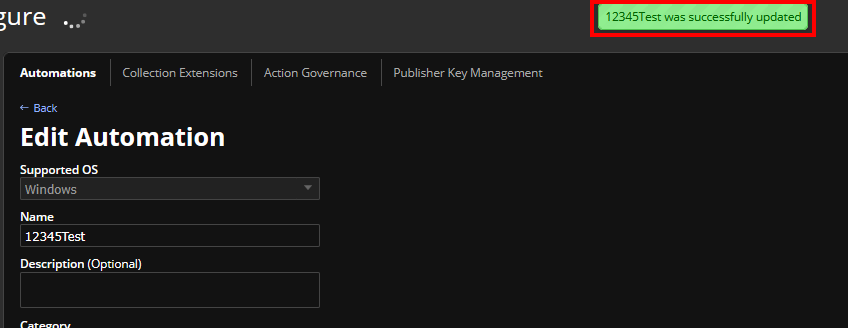
You will see a message that it was successfully updated.
-
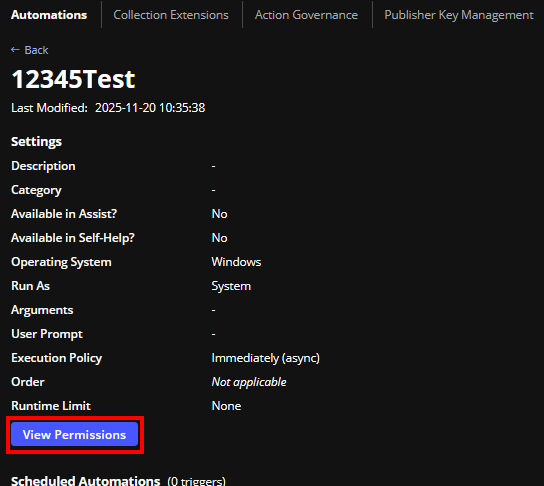
Click View Permissions to verify your changes.
On This Page